Modern offices depend on laptops, phones, tablets, and meeting-room equipment. Keeping them charged should be simple. Yet a desk crowded with adapters and tangled cables can slow down even a short meeting.
A USB C Power Strip can bring AC outlets and USB-C charging ports into one accessible location. The practical benefit is less clutter, not magic. Port output, charging speed, and power-sharing behavior differ by model, so buyers should check the product specifications against their devices.
The wider energy picture also deserves attention. The International Energy Agency’s Electricity 2024 report estimates that data centres used about 460 terawatt-hours of electricity worldwide in 2022. It projects consumption could exceed 1,000 terawatt-hours by 2026. That figure covers data centres, not office charging strips, but it highlights the growing importance of thoughtful power decisions. Small details matter.
USB-C Power Delivery specifications support a range of power levels, with the latest version allowing up to 240 watts under compatible conditions. That does not mean every strip or port delivers that level. Not every port. Businesses should compare rated output, total shared capacity, cord length, and safety certifications before buying. Consider the everyday scene: a laptop at a shared desk, a phone beside a conference-room display, and fewer bulky chargers competing for outlets. The right USB C Power Strip may make that setup cleaner and easier to manage. Still, the label can mislead; verify the details.
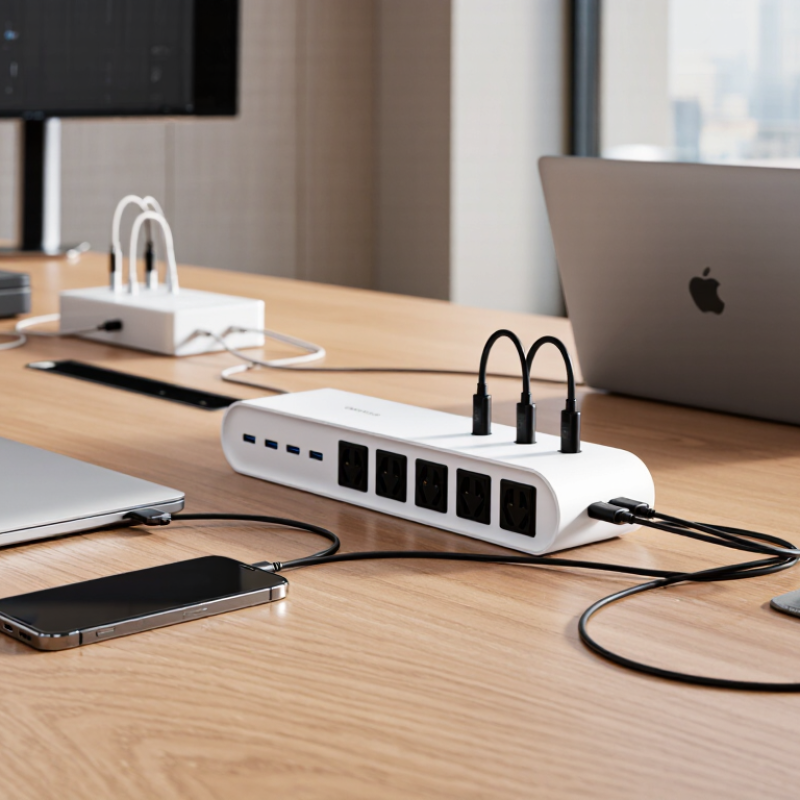
A USB-C power strip combines traditional AC outlets with USB-C ports in one compact unit. It still plugs into a wall outlet. Inside, a small power-conversion circuit changes AC electricity into the DC power phones, tablets, and laptops use. The USB-C connector is only the shape of the port; it does not guarantee fast charging. That distinction matters.
When a compatible device and cable are connected, USB Power Delivery can negotiate a suitable voltage and current. The device draws power within the limits supported by the strip and cable. Some models provide different output levels across their ports, and the USB power budget may be shared. A laptop connected beside a phone may therefore charge more slowly than expected. Check the rated output per port and total output. The fine print counts.
At a work desk, one strip might power a monitor through an AC outlet while charging a laptop and phone through USB-C. It can reduce adapter clutter, but it does not create unlimited power or replace checking the strip’s overall rating. Look for clearly stated output, overload protection, and any surge protection you actually need; features vary by model. It is easy to assume every USB-C port behaves the same. It doesn’t. A suitable cable and a device that supports the advertised charging standard are still part of the setup.
USB-C Power Delivery can make a busy desk simpler. A compatible power strip can charge a laptop, tablet, or phone through one USB-C cable, reducing the cluster of separate charging bricks. When a device connects, the charger and device negotiate a supported power level. This helps deliver suitable power instead of treating every device the same. Check the label. A laptop may need more power than a phone, and charging speed depends on the strip’s output, the cable, and the device’s own limits.
For a small office, that can mean fewer adapters competing for outlets near a meeting table or shared workstation. Look for the USB-C output rating for each port, as well as the strip’s total available power. Some models share power across ports, so connecting several devices may reduce the amount available to each one. Not every setup is ideal. A high-powered laptop may charge slowly if the port cannot meet its requirements, even though the connector fits. Staff should also keep cables accessible and avoid covering the strip, especially under a desk. Read the specifications before purchase; USB-C describes the connector, not a guarantee of charging speed.
A USB-C power strip can turn a crowded desk into a more workable charging station. One strip can serve laptops, phones, and tablets, reducing the hunt for open outlets and the tangle of separate adapters. That matters in shared offices, meeting rooms, and reception areas where devices move throughout the day. Small improvement. Staff can plug in and get back to work.
The U.S. Energy Information Administration’s 2018 Commercial Buildings Energy Consumption Survey found that electricity accounted for about 56% of energy use in U.S. commercial buildings. A power strip will not automatically lower that figure, but consolidating connections can make equipment easier to locate, switch off, and manage. USB Power Delivery 3.1 supports up to 240 watts, according to the USB Implementers Forum; actual output depends on the strip’s rating and how power is shared across ports. Check those details against the devices your team uses. There is a trade-off: fewer adapters mean a tidier setup, but a busy strip can still be overloaded if its total rating is ignored. The neat desk is not the whole story.
Why Choose a USB-C Power Strip for Your Business?
How to Choose a USB-C Power Strip for Workplace Needs
A suitable USB-C power strip can reduce desk clutter and make charging easier for staff. Start with the devices people actually use: laptops, phones, tablets, or shared meeting-room equipment. Check each laptop’s required charging wattage, then compare it with the strip’s USB-C output. A port marked USB-C does not automatically provide enough power for every laptop. Look for the output details, especially when several ports may share power.
Tips: Check the total rated load. Count the outlets and USB-C ports your team needs. Leave space for bulky plugs. Confirm the cord reaches the desk without crossing walkways. For laptop charging, verify whether the USB-C port supports Power Delivery and how its output changes when other ports are in use. Small print matters here.
Think about where the strip will sit. A sturdy, mountable design may work well beneath a shared table, while a compact unit can suit a hot-desk area. Check for recognized electrical safety certification for your region, and follow the manufacturer’s use instructions. Avoid daisy-chaining power strips. Needs can change after a team grows, so review the setup during office moves. I’d still test one unit at a typical workstation before outfitting every desk; the cable reach or port layout may feel different in daily use.
Match the strip’s per-port output to the devices your team charges. These representative USB-C charger wattages are approximate; actual requirements vary by device and usage.
When choosing a power strip, check both the maximum output per USB-C port and the total power available across all ports when multiple devices charge at once.
A USB-C power strip can reduce adapter clutter, but safe daily use begins with a realistic load plan. Before plugging in equipment, check the strip’s rated capacity and the wattage of connected devices. Add their loads, including monitors, chargers, and desk lamps, and leave some headroom. USB-C ports may share available power, so a laptop may charge more slowly when other ports are busy. Check the stated output, not just the port shape.
Choose a stable, dry spot with airflow and an accessible switch. Keep the strip away from sinks, heaters, and places where chairs or drawers can crush its cable. For a fixed office installation, ask a qualified electrician to assess outlet location and circuit capacity. A power strip is not a substitute for additional building wiring. Small details matter. It is easy to assume a tidy desk is a safe desk, but cables behind cabinets can still overheat or become damaged.
During daily use, look for loose plugs, frayed cords, unusual warmth, or a burning smell. Disconnect the strip if anything seems wrong, and replace damaged equipment rather than patching it. Avoid connecting one power strip to another; that can make overload risks harder to spot. Check the load again when adding equipment. Office setups change, and yesterday’s safe arrangement may no longer be safe.
| Business consideration | What to check | Practical guidance | Example or action |
|---|---|---|---|
| USB-C charging capacity | Per-port output and total USB output when multiple ports are in use | Compare the strip’s published USB-C Power Delivery ratings with the charging needs of the devices. A port’s maximum output may be reduced when other ports are active. | Check the combined-output specification before planning simultaneous laptop and phone charging. |
| Connected equipment load | The strip’s rated voltage, current, and power, plus the connected devices’ nameplate ratings | Keep the combined load within the strip’s rating and follow local electrical requirements. Do not assume that available outlets indicate available capacity. | Record the ratings of equipment assigned to each shared power strip and review the total before adding devices. |
| Installation location | Access to the wall outlet, cable routing, ventilation, and exposure to moisture or impact | Place the strip where staff can reach the switch and inspect the cord. Keep it dry, uncovered, and clear of walkways, heat sources, and pinch points. | Use suitable cable-management clips to route cords without trapping them under furniture or rugs. |
| Outlet and extension use | The strip’s plug, cord condition, and connection to the building outlet | Plug the strip directly into a suitable wall outlet unless its instructions explicitly permit another arrangement. Do not connect power strips in series or use a damaged cord. | If the outlet is poorly located or more outlets are needed, ask a qualified electrician about a permanent solution. |
| Device compatibility | USB-C charging protocol support and the device’s required charging power | USB-C describes the connector shape; charging speed depends on the charger and device capabilities, supported protocols, and cable. | Use a suitable USB-C cable and verify device requirements when charging is slow or a device does not charge. |
| Daily inspection | Cracks, loose plugs, frayed cables, unusual heat, odor, or discoloration | Stop using the strip if it shows damage or abnormal heating. Unplug it if safe to do so, and arrange replacement or inspection rather than attempting an improvised repair. | Include power strips in routine workplace visual checks and report defects promptly. |
| Product selection | Clear ratings, overload protection where specified, and safety certification applicable to the location | Choose a product with accessible documentation and ratings that match the intended use. Follow its installation, operating, and maintenance instructions. | Keep the product instructions and electrical ratings available to facilities staff. |
| When professional help is needed | Repeated tripping, insufficient outlets, or a need for fixed or concealed wiring | A plug-in power strip is not a substitute for permanent building wiring. Have electrical changes and recurring circuit issues assessed by a qualified electrician. | Document the affected circuit and equipment, then request a facilities or electrician review. |
The charger and device negotiate a supported power level. Check the label.
Often, yes, if its ports support those devices’ power needs. A phone may need less power than a laptop.
No. The connector alone does not guarantee enough power. Compare the port’s output with the laptop’s requirements.
Check each port’s output and the strip’s total available power. Some models share power between ports, so charging may slow down.
Count the devices, outlets, and USB-C ports staff use. Leave room for bulky plugs and check that the cord reaches the desk.
Yes. Charging speed depends on the strip, cable, and device limits. Use a suitable cable.
Keep it accessible and uncovered, including beneath a desk. Route its cord away from walkways.
Yes. Try one at a typical workstation first. The port layout or cable reach may be awkward in daily use. Small details matter.
A USB C Power Strip combines standard electrical outlets with USB-C ports, allowing businesses to power equipment and charge compatible devices from one organized location. Through USB-C Power Delivery, it can supply suitable devices with the power they need for efficient charging, subject to the strip’s capabilities and each device’s requirements. This can reduce reliance on separate adapters, simplify shared workspaces, and help keep desks and meeting areas tidier.
When choosing a USB C Power Strip, consider the number and type of outlets and ports, total power capacity, cable length, and the devices employees use. Check that its specifications suit the workplace’s charging needs, and avoid exceeding its rated load. Place it on a stable, accessible surface, keep vents clear, and inspect cords and plugs regularly. Thoughtful selection and everyday load management can make charging more convenient while supporting safe, organized use.